APK Setup
Overview
With the backend deployed, the next step is to build and install the Flutter APK onto the emulator. The provisioning script automates the full pipeline — SSL fingerprint generation, SSL pinning configuration, APK build, and installation via ADB.
Provisioning Script
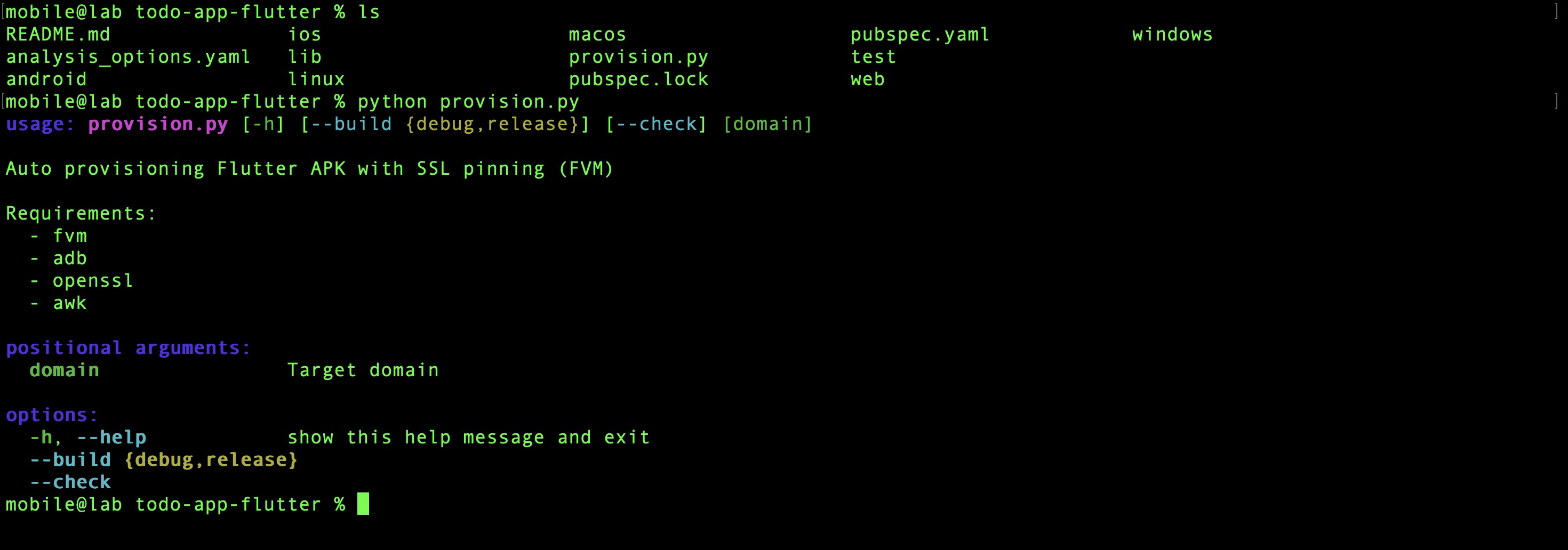
The repository includes provision.py which handles the entire setup in a single command.
Verify all required tools are available before proceeding:
1. Start the Emulator
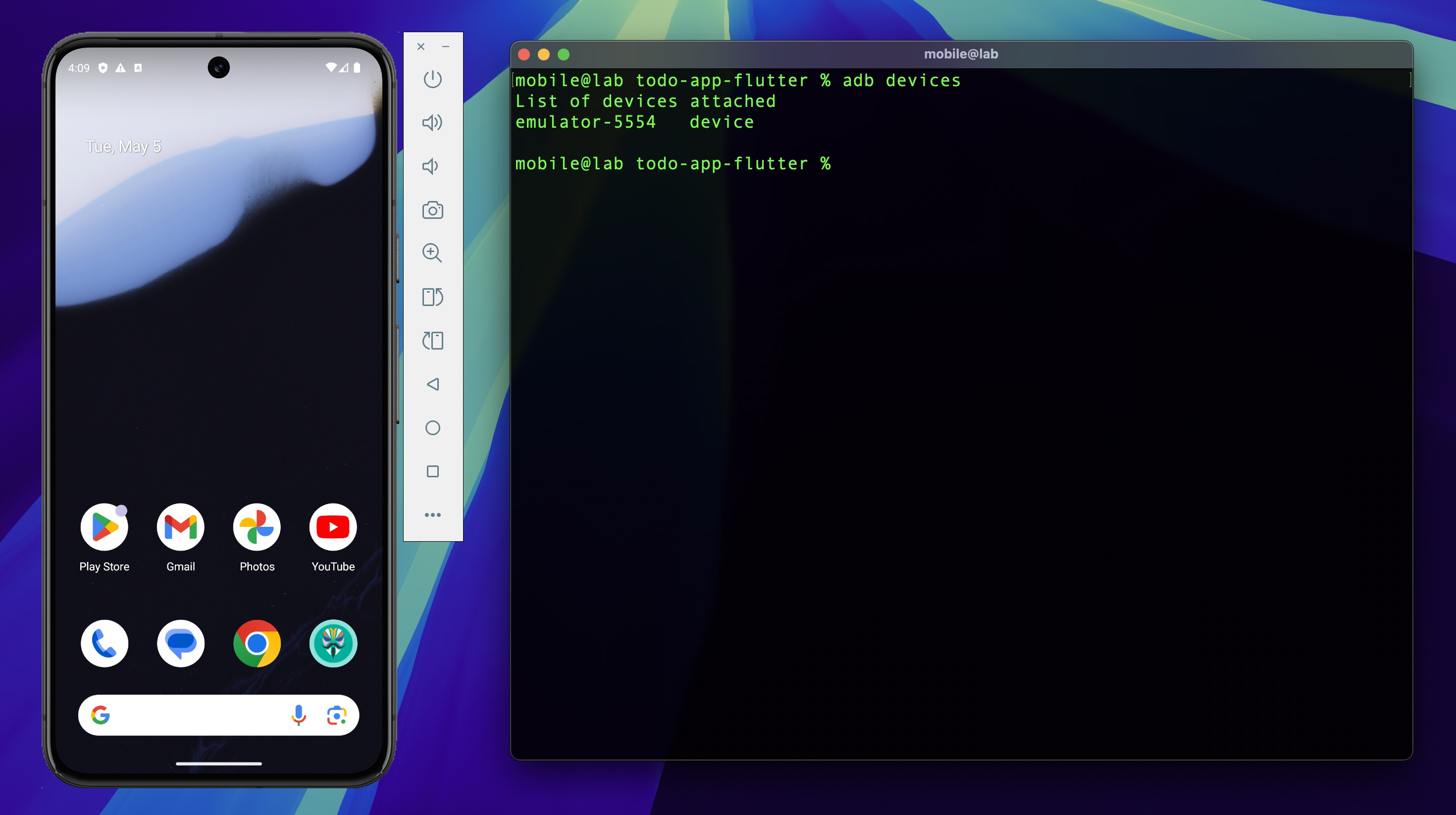
Ensure the Android Virtual Device is running before executing the provisioning script — ADB requires an active device target for the installation step.
2. Install FVM
The project uses FVM (Flutter Version Management) to pin a specific Flutter version, ensuring the build is reproducible regardless of whatever Flutter version is installed globally.
Installation guide: https://fvm.app/documentation/getting-started/installation
3. Run Provisioning Script
The script performs the following steps automatically:
| Step | Action |
|---|---|
| 1 | Fetch SSL certificate fingerprint from the target domain |
| 2 | Update environment configuration with the fingerprint |
| 3 | Install Flutter version defined in the project via FVM |
| 4 | Build release APK (--release) |
| 5 | Detect device ABI |
| 6 | Install APK onto the connected device via ADB |
Build warnings during the Flutter release build can be safely ignored.
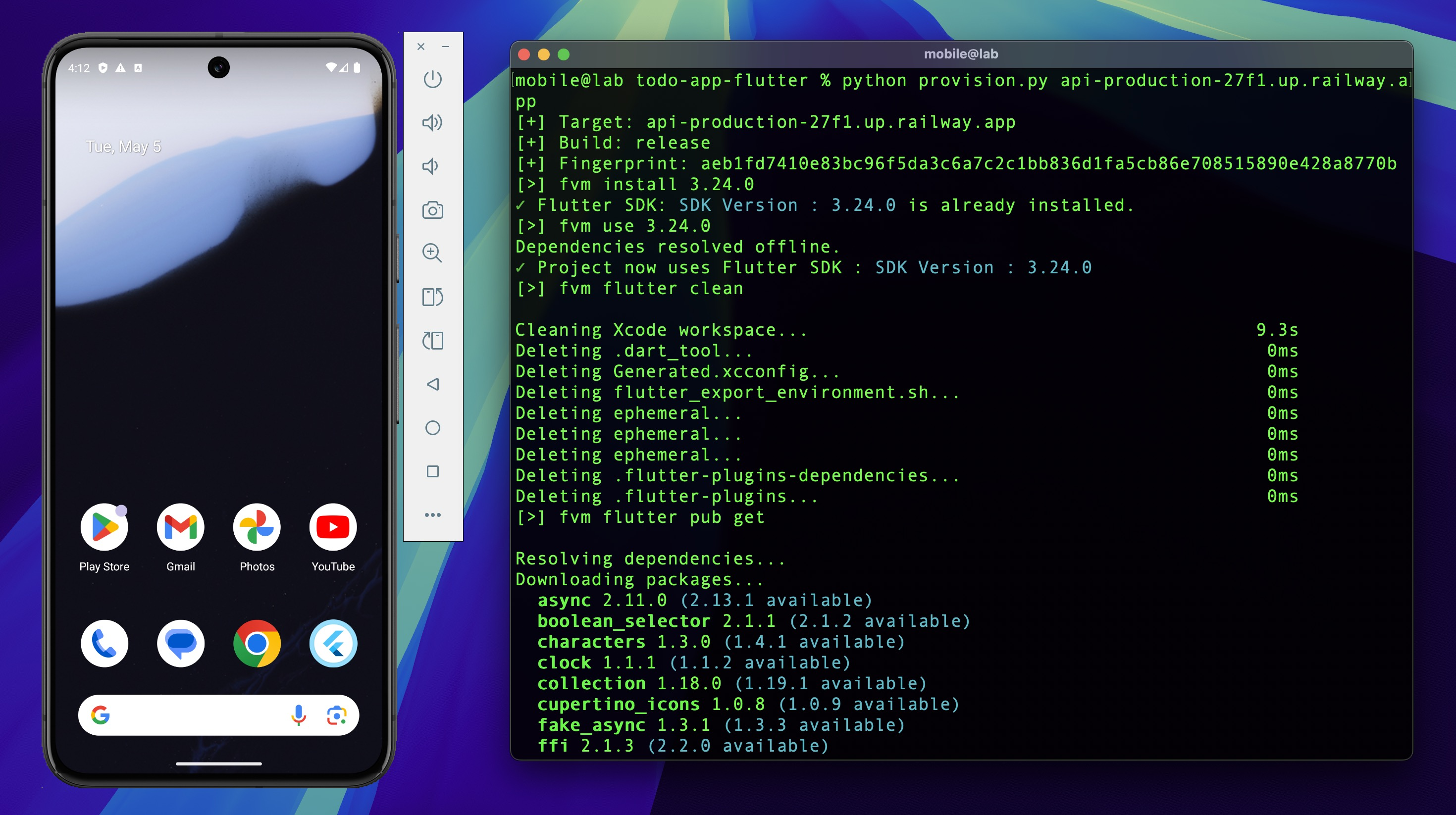
The script fetches the live SHA-256 fingerprint from the
Railway domain and bakes it directly into the APK at build time. This is how SSL pinning works
in this app — the expected fingerprint is hardcoded into libapp.so during compilation, not
loaded from a config file at runtime. The consequence: the same fingerprint that the script
fetches here is the one an attacker will extract from the binary during static analysis, and
the one that needs to be bypassed during dynamic analysis.
4. Launch the App
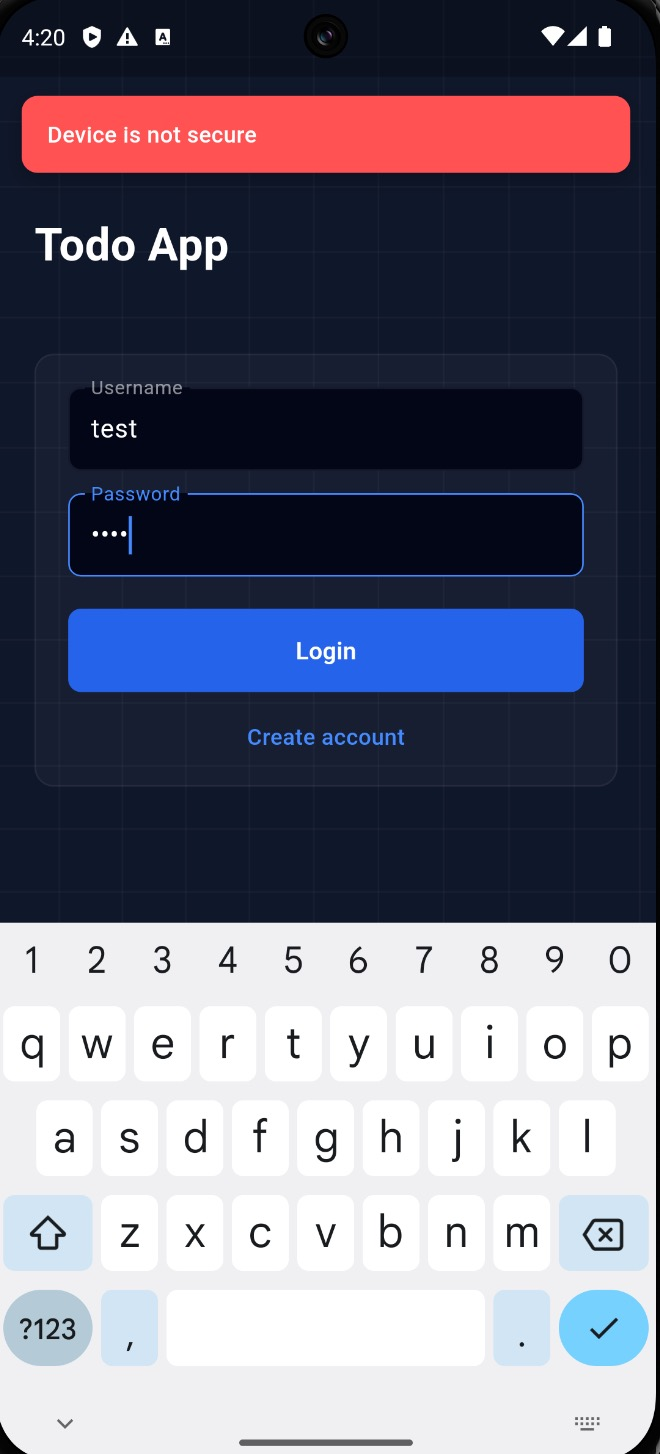
Open the application on the emulator. The app is functional but immediately flags the device as not secure due to the root detection check — this is expected behavior.
Root detection bypass is covered in Dynamic Analysis.